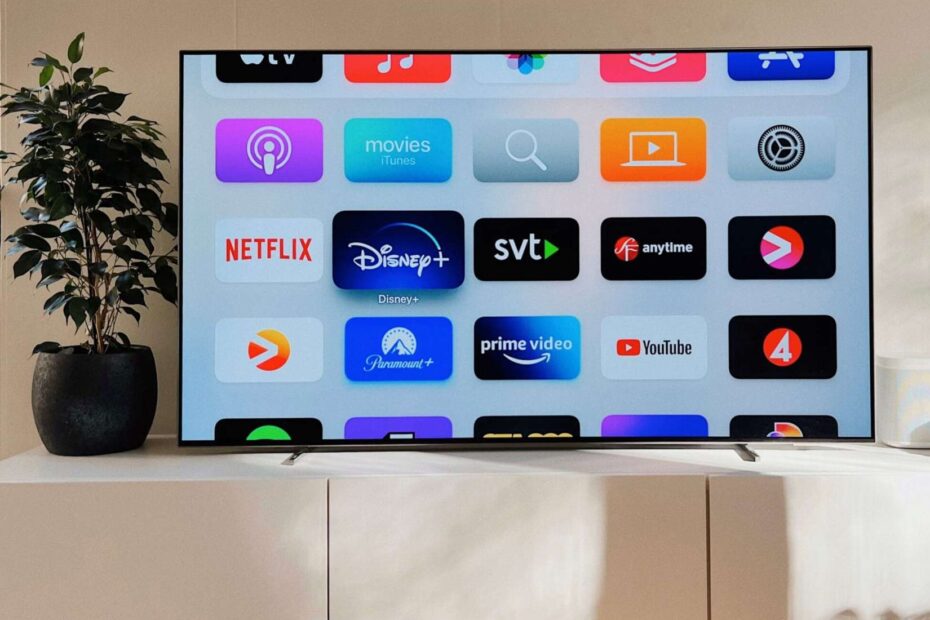
Most homes me Smart TV ka use bas YouTube, OTT apps aur kabhi‑kabhi screen mirroring tak limited reh jata hai. Par reality ye hai ki Smart TV ek mini computer + family home hub ban sakta hai—agar aap uske hidden options ko sahi tarike se use karein.
Is blog me main aapko 20 underused Smart TV features beginner-friendly steps ke saath sikhaunga—jo aap aaj hi try kar sakte ho. Saath hi, main simple language me RAM/storage limitations, performance tips, safety/privacy basics, aur “kab DIY stop karke expert ko call karein” bhi cover karunga. Agra me Smart TV setup/optimization me Ravi Electronics aapke saath hai—especially jab Wi‑Fi, accessories, ports, ya repeated hang/crash jaisi problem ho.
Key Points
- Sabse pehle wireless keyboard + mouse try karo for fast typing/search.
- Phone ko remote banao + voice typing se search 3x easy ho jati hai.
- Bluetooth headphones se late-night private listening bina disturb kiye ho jati hai.
- Bluetooth speaker/soundbar connect karke TV ka sound instant upgrade kar sakte ho.
- Accessibility settings (captions, text size) se parents ko viewing easy hoti hai.
- Game controller support se family gaming smooth ho sakti hai.
- Casting vs mirroring ka difference samajh lo—problem half solve ho jati hai.
- USB pendrive/HDD se offline movies/photos chalana super convenient hai.
- TV ko digital photo frame banake slideshow chala sakte ho.
- Profiles/Kids mode se content control + clean recommendations milti hain.
- Basic browsing possible hai, par safe browsing habits zaroor rakho.
- Online classes/workouts big screen par better focus dete hain.
- Cloud drive (Drive/Photos) se files/photos TV par open ho sakti hain (model par depend).
- Presentation/second screen ke liye casting use karo.
- Timers/reminders (assistant/clock apps) se TV ek home helper ban jata hai.
- Home screen par app organization karke clutter kam karo.
- Smart TV slow lag fix ka first rule: storage free rakho + restart routine.
- Smart TV storage full warning aaye to unused apps uninstall karo, cache limited clean karo.
Troubleshooting Decision Tree (If/Then)
- IF Bluetooth connect nahi ho raha → THEN TV restart → device “Forget” → pair again → 1–2 meter distance check.
- IF TV slow/laggy hai → THEN 1–2 GB storage free → unused apps uninstall → software update check → restart.
- IF USB detect nahi ho rahi → THEN port change → pendrive format check (FAT32/exFAT) → another drive try.
- IF casting/mirroring fail → THEN same Wi‑Fi verify → router restart → TV network reconnect.
- IF Wi‑Fi TV me weak hai (phone me ok) → THEN TV near‑router line-of-sight try → 5 GHz/2.4 GHz switch → router channel auto.
- IF remote slow/respond nahi kar raha → THEN batteries replace → TV restart → phone remote app try.
- IF app crash ho rahi hai → THEN app update → cache clear (if available) → reinstall.
- IF sound Bluetooth me delay hai → THEN different headphone try → “Game/Low latency” mode check → TV audio settings reset.
- IF storage full warning baar‑baar aati hai → THEN downloads/delete → unused apps remove → app data cleanup (carefully).
- IF updates fail repeatedly → THEN stable Wi‑Fi + free storage → restart → try again; persist ho to expert call.
- IF ports loose/HDMI disconnect hota hai → THEN cable change + gentle fit check; force na karein → technician.
- IF TV overheating/hot smell aata hai → THEN turn off + cool down → ventilation improve; repeat ho to technician.
Choose your goal (Fast table)
| Aap kya karna chahte ho? | Feature/Accessory | 2-step setup | Common issue + quick fix |
|---|---|---|---|
| Fast typing/searching | Wireless keyboard + mouse | Pair via Bluetooth/USB dongle | Not detected → change port / re-pair |
| Family gaming | Wireless game controller | Pair + test in a game | Lag → closer distance / restart |
| Late-night private listening | Bluetooth headphones | Pair + select audio output | Delay → try different device |
| Offline movie/photo library | USB pendrive/HDD + player app | Plug in + open file manager | Not detected → different drive/port |
| Phone screen on big TV | Casting/mirroring | Same Wi‑Fi + cast | Fails → router restart |
| Kids learning + safe mode | Profiles/parental controls | Create profile + restrict | Settings locked → admin PIN |
| Better audio | Soundbar/speaker | Connect + set output | No sound → output setting |
| Quick files access | Cloud/local file manager | Sign-in + open files | Storage warning → free space |
| Smooth performance | Maintenance routine | Restart + cleanup | Still slow → update OS |
| Video calls (if supported) | USB webcam (model dependent) | Plug + grant permission | Not supported → use casting from phone |
Kaunse 20 features hain jo log mostly use nahi karte?
Neeche 20 Smart TV hidden features ko 4 categories me divide kiya hai—Control & Comfort, Entertainment, Productivity & Learning, aur Performance & Safety. Menu wording model ke hisaab se thoda change ho sakta hai (Android TV/Google TV, Samsung, LG, etc.), par overall process same rehta hai.
Group A: Control & Comfort (5)
1) Smart TV me keyboard mouse kaise connect karein?
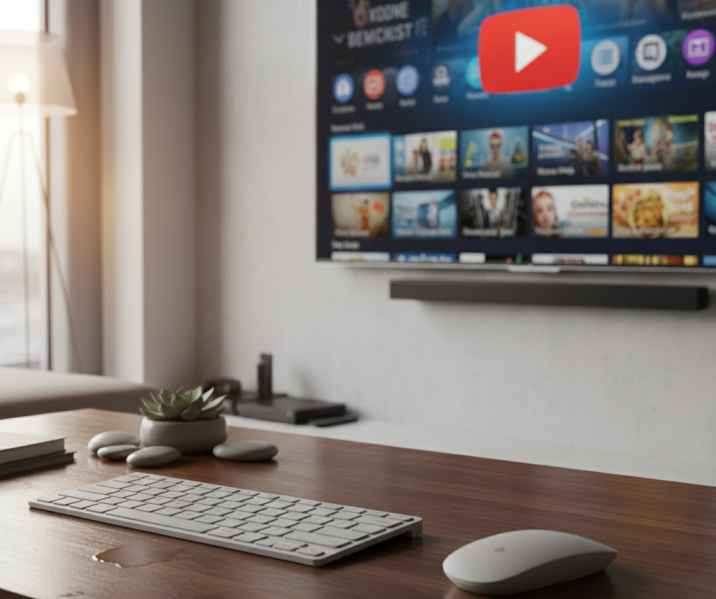
Keyboard/mouse connect karke aap TV ko Smart TV as computer jaisa use kar sakte ho—search, passwords, browsing sab fast ho jata hai. Ye feature un logo ke liye best hai jo YouTube/OTT me typing se pareshan hote hain.
Who should use it: Parents, senior citizens, aur jo bhi heavy searching karte hain.
Steps:
- USB wireless dongle ho to TV ke USB port me plug karein.
- Bluetooth keyboard/mouse ho to Settings → Bluetooth/Remote & Accessories me jaiye.
- “Add device/Pair new device” select karke keyboard/mouse pair karein.
- On-screen cursor aata hai to mouse ready hai; typing test search bar me karein.
- Tip: Compact keyboard with touchpad usually best rehta hai.
Common problems + quick fixes:
- Not detected → USB port change karein, dongle reinsert karein.
- Bluetooth pair nahi ho raha → device “Forget” karke re-pair karein, distance kam karein.
- Keys mismatch → keyboard language/input settings me check karein.
When to call technician (optional): Agar USB ports loose lag rahe hain ya intermittently disconnect ho rahe hain.
2) Phone ko TV remote + voice typing kaise banayein?
Phone remote se aap typing, voice search, volume, aur navigation easily kar sakte ho—especially jab original remote missing ho. Ye Agra ke homes me common hai jahan remotes often “misplace” ho jate hain.
Who should use it: Families jinke ghar me multiple users hain, ya remote slow ho gaya ho.
Steps:
- TV aur phone ko same Wi‑Fi par connect rakhein.
- Android/Google TV me official TV remote option (Google Home/TV remote) use karein (model dependent).
- TV par pairing prompt aaye to confirm karein.
- Voice typing icon se Hindi/English me bolkar search karein.
- Tip: Phone keyboard se long passwords easily type ho jate hain.
Common problems + quick fixes:
- TV detect nahi ho raha → same Wi‑Fi confirm karein, router restart karein.
- Pairing code issue → TV restart, app update, then retry.
- Voice typing slow → phone mic permission check karein.
3) Bluetooth headphones kaise connect karein (private listening)?
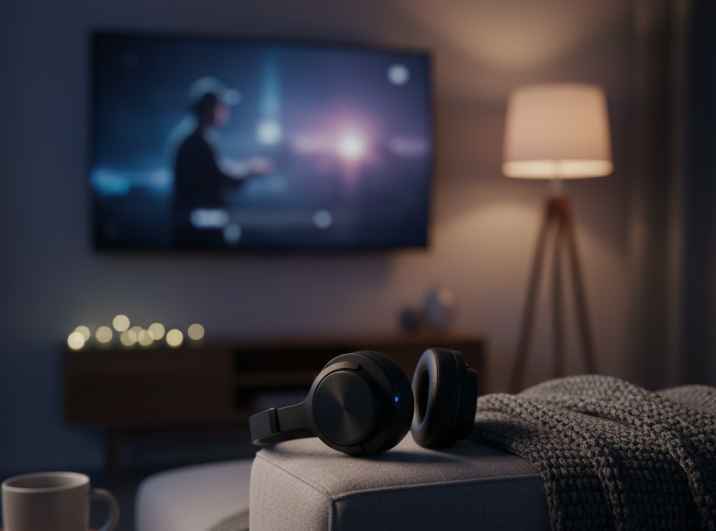
Bluetooth headphones connect karke aap late-night movies bina ghar disturb kiye dekh sakte ho. Ye feature “silent home” ke liye perfect hai.
Who should use it: Late-night viewers, students, working professionals.
Steps:
- Headphones ko pairing mode me rakhein.
- TV Settings → Bluetooth/Accessories → Add device open karein.
- Headphone name select karke pair karein.
- Audio output me “Bluetooth” select ho gaya ho to confirm karein.
- Volume TV aur headphones dono par adjust karein.
Common problems + quick fixes:
- Connect nahi ho raha → headphones “Forget” + re-pair, distance 1–2 meter.
- Audio delay → different headphones try karein, “Game/low latency” mode check (if available).
- Disconnect hota hai → Wi‑Fi/Bluetooth interference; router se thoda door try karein.
When to call technician (optional): Agar Bluetooth option hi greyed out ho ya on nahi ho raha.
4) Bluetooth speaker/soundbar basics: TV ka sound kaise upgrade karein?
Soundbar ya Bluetooth speaker se dialogues clear ho jate hain aur music punchy lagta hai—ye simplest Smart TV accessories upgrade hai. Agra me dust/heat ke kaaran TV ke inbuilt speakers time ke saath dull lagne lagte hain, so external audio helpful rehta hai.
Who should use it: Families, elders (clear dialogue), movie lovers.
Steps:
- Soundbar ko HDMI ARC/eARC (best) ya optical ya Bluetooth se connect karein.
- TV Settings → Sound/Audio output me “External speaker/ARC/Bluetooth” select karein.
- Volume control sync check karein (ARC me usually smooth).
- If Bluetooth use ho raha hai, distance kam rakhein.
Common problems + quick fixes:
- No sound → audio output setting wrong; TV output “TV speaker” se change karein.
- Bluetooth disconnect → re-pair, speaker firmware/app check (if any).
- HDMI ARC not working → ARC labeled HDMI port use karein, HDMI cable change karein.
When to call technician (optional): ARC port confusion, wiring neat setup, ya repeated audio drop.
5) Accessibility: captions, text size, audio options kaise set karein?
Captions/subtitles, text size, aur audio enhancements se viewing comfort badhta hai—especially parents ke liye. Ye feature built-in hota hai, par log often ignore kar dete hain.
Who should use it: Senior citizens, kids learning content, hearing comfort ke liye.
Steps:
- Settings → Accessibility me jaiye (menu wording vary).
- Captions/Subtitles ON karein, size/color adjust karein.
- Text size/Display scaling badha sakte hain.
- Audio options me “Clear voice/dialogue enhancement” (if available) try karein.
- Tip: Different apps ke subtitles separate settings me bhi ho sakte hain.
Common problems + quick fixes:
- Subtitles nahi aa rahe → app ke playback menu me subtitles enable karein.
- Text too big → scaling one step reduce karein.
- Dialogue still low → sound mode “Speech/Clear” try karein.
Group B: Entertainment (5)
6) Game controller Smart TV se kaise connect hota hai?
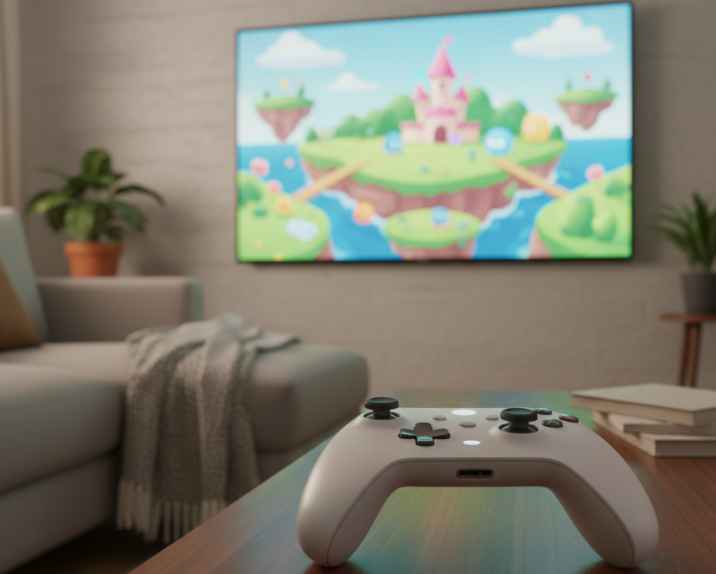
Many Smart TVs controllers support karte hain, jisse casual games aur cloud gaming better feel hota hai. Ye feature especially kids + family time ke liye fun hai.
Who should use it: Kids, casual gamers, family gaming nights.
Steps:
- Controller ko pairing mode me layein.
- TV Settings → Bluetooth/Accessories → Add device karein.
- Pair karke koi simple game open karke buttons test karein.
- If USB wired controller ho, USB port me plug karke try karein.
- Tip: Controller compatibility model-to-model vary kar sakti hai.
Common problems + quick fixes:
- Input lag → TV ke paas baithkar test karein, restart TV.
- Pair nahi hota → controller reset + re-pair, battery charge check.
- Some buttons not mapping → different game/controller try karein.
7) Mirroring vs Casting me difference kya hai, aur kaun sa use karein?
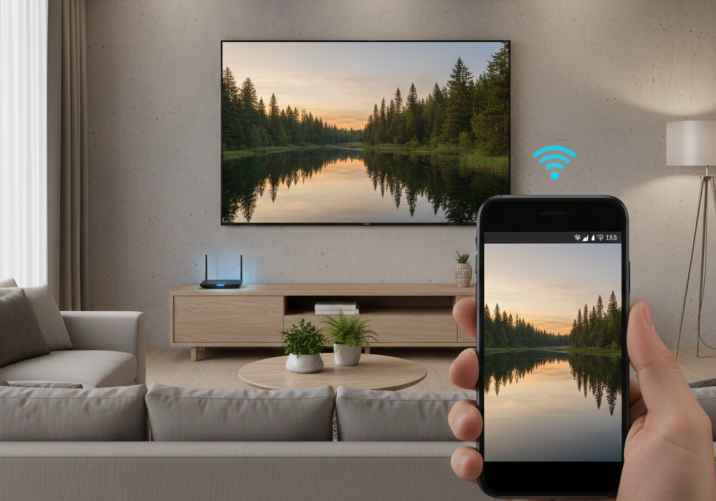
Mirroring me phone ka pura screen TV par duplicate hota hai, jabki casting me app direct TV par stream hoti hai (phone remote ki tarah kaam karta hai). Daily use me casting more stable aur battery-friendly hoti hai.
Who should use it: Mirroring for presentations/phone content; casting for YouTube/OTT.
Steps:
- Casting: app (YouTube etc.) me Cast icon → TV select.
- Mirroring: phone quick settings me “Screen cast/Smart View” (name vary) → TV select.
- Same Wi‑Fi must be on.
- Playback test karein aur volume sync check karein.
Common problems + quick fixes:
- TV list me nahi aa raha → same Wi‑Fi confirm, router restart.
- Lag/stutter → 5 GHz Wi‑Fi try, distance reduce.
- Mirroring black screen → DRM content mirror nahi hota; casting use karein.
8) USB se offline movies/photos kaise chalayein?
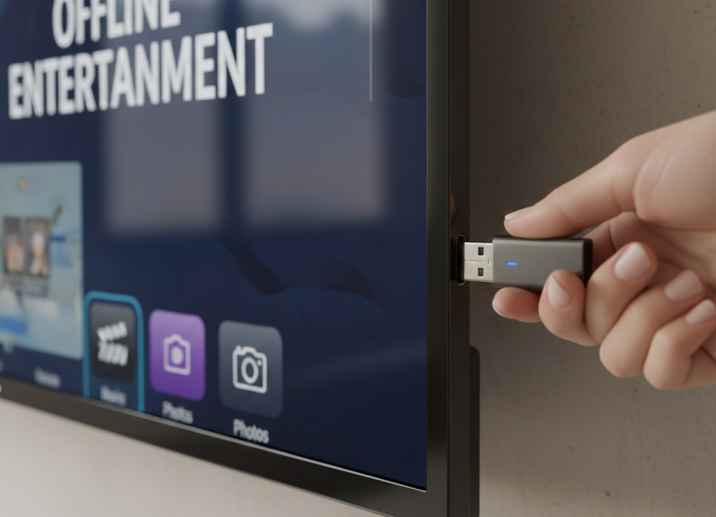
USB pendrive/HDD se offline media chalana simplest offline solution hai—no internet needed. Agra me internet fluctuation ya data limit ho, to ye feature super practical hai.
Who should use it: Families with offline movies, function photos/videos.
Steps:
- Pendrive ko FAT32/exFAT format me rakhein (most TVs support).
- TV ke USB port me plug karein.
- File Manager/Media Player open karein.
- Video/photo folder select karke play karein.
- Tip: Unknown “codec” wale videos play na hon to different player app (if available) try karein.
Common problems + quick fixes:
- Not detected → USB port change, pendrive another device par test.
- Video not playing → file format/codec issue; try different file or supported format.
- HDD power issue → some HDDs extra power maangte hain; powered drive use karein.
When to call technician (optional): Agar USB port physically loose ho ya “power surge” warnings aati हों.
9) TV ko digital photo frame/slideshow kaise banayein?
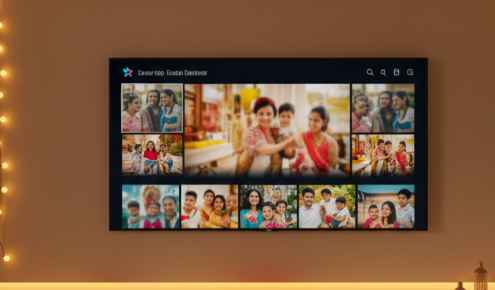
Aap TV ko living room me digital photo frame bana sakte ho—family albums, travel photos, festivals slideshow. Ye simple feature ghar ko premium feel deta hai.
Who should use it: Family halls, office reception, elders.
Steps:
- USB ya cloud photos folder ready karein.
- Gallery/Photos app me slideshow mode select karein.
- Slideshow speed + transition choose karein.
- Screen timeout/energy settings set karein (burn-in avoid).
- Tip: Static image hours tak mat chhodein; slideshow better hai.
Common problems + quick fixes:
- Photos not showing → folder path check, file type (JPG/PNG) use karein.
- Slideshow stops → power saving settings adjust karein.
- Colors dull → picture mode “Standard” try karein.
10) Family profiles / Kids mode / parental controls kaise set karein?
Profiles se har member ke recommendations alag rehte hain, aur Kids mode se safe content control hota hai. Ye feature families ke liye must-have hai.
Who should use it: Kids wale homes, shared TV in joint families.
Steps:
- Settings → Accounts/Profiles me new profile create karein (model dependent).
- Kids profile select karke age restrictions enable karein.
- App-level restrictions/ratings lock set karein.
- PIN set karein aur safe place par note karein.
- Tip: YouTube/OTT apps ke andar bhi parental controls hoti hain.
Common problems + quick fixes:
- Settings locked → admin profile se login + PIN use karein.
- Recommendations mix ho rahi → separate profiles actually select karna na bhulein.
- Kids bypass attempt → PIN change + guest profile restrict karein.
Group C: Productivity & Learning (5)
11) Smart TV par basic web browsing kaise karein (safe way)?
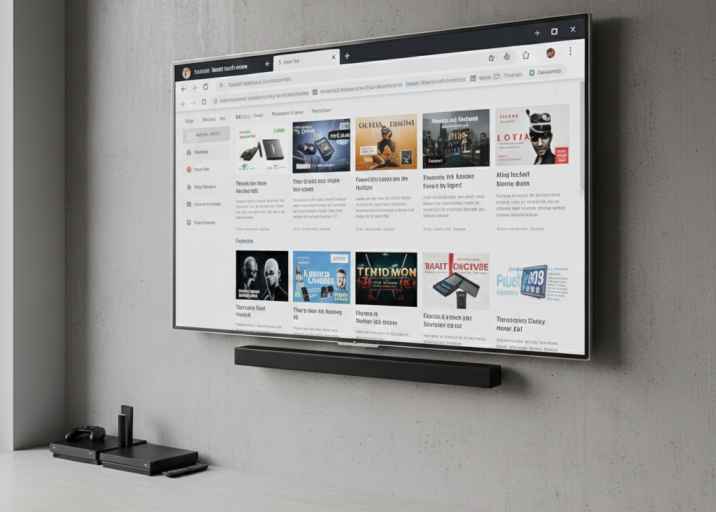
Basic browsing possible hai, but aapko safe browsing rakhni chahiye—unknown links/extensions se bachna hai. Simple tasks like news, forms, or tutorials large screen par comfortable hote hain.
Who should use it: Students, elders, quick information needs.
Steps:
- TV browser app open karein (built-in ya approved store se).
- Keyboard/mouse connect karke navigation easy banayein.
- Only trusted websites use karein.
- Passwords save karne se bachein (shared TV).
- Tip: Banking/UPI type sensitive use phone/laptop par hi better hai.
Common problems + quick fixes:
- Typing slow → phone remote/keyboard use karein.
- Pages heavy load → lighter sites, fewer tabs.
- Pop-ups → browser settings me block enable karein.
12) Online classes/workouts TV par better kaise chalayein?
Smart TV par classes/workouts bada screen + better audio ke saath engaging lagte hain. Ye feature kids learning aur fitness routines dono ke liye helpful hai.
Who should use it: Students, homemakers, fitness learners.
Steps:
- YouTube/learning app open karein aur playlist save karein.
- Captions ON karke clarity badhayein.
- Bluetooth headphones/speaker choose karein as per need.
- Timer set karke session track karein.
- Tip: Wi‑Fi stable nahi ho to video quality 720p pe lock karein.
Common problems + quick fixes:
- Buffering → router restart, 5 GHz try, quality reduce.
- Audio low → clear voice mode, external speaker.
- App crash → update app, restart TV.
13) Cloud drive (Drive/Photos) se files TV par kaise dekhein?
Agar aapke TV me support ho, to cloud drive se photos/PDFs easily open ho sakte hain. Ye “pen drive carry” wali tension kam karta hai.
Who should use it: Office users, teachers, family photo backups.
Steps:
- Supported cloud app sign-in karein (Google Drive/Photos etc., model dependent).
- Folder open karke file select karein.
- Zoom/scroll ke liye mouse helpful rahega.
- Logout/lock profile if shared TV.
- Tip: Sensitive documents ke liye guest mode avoid karein.
Common problems + quick fixes:
- Sign-in error → date/time correct, Wi‑Fi stable.
- File not opening → format unsupported; phone se cast karein.
- Storage warning → cloud is fine, but TV app cache clean karein.
14) Presentation/second screen ke liye TV use kaise karein?
Smart TV ko aap presentation screen bana sakte ho—phone/laptop se casting karke. Agra me small offices/shops me ye quick setup popular ho raha hai.
Who should use it: Small business owners, students, office presentations.
Steps:
- TV aur phone/laptop same Wi‑Fi par rakhein.
- Casting/screen share option select karke TV choose karein.
- “Do not disturb” on phone to avoid pop-ups.
- Slide show start karein.
- Tip: For best results, stable Wi‑Fi + close distance.
Common problems + quick fixes:
- Audio/video lag → router closer, 5 GHz, restart casting.
- TV not visible → network reset on TV, router restart.
- Quality blurry → higher resolution output device choose, mirroring settings adjust.
15) Notes/reminders/timers TV par kaise use karein?
Many TVs me assistant/clock apps ke through reminders/timers possible hote hain—kitchen timers, kids study timer, workout timer. Ye small feature daily life me surprisingly useful hota hai.
Who should use it: Families, students, homemakers.
Steps:
- Clock/assistant app open karein (availability varies).
- Timer set karein (voice typing/remote).
- If assistant supported ho to voice commands try karein.
- Notifications volume moderate rakhein.
- Tip: Night me timer sounds low rakhein.
Common problems + quick fixes:
- Timer not audible → volume/sound mode check.
- Assistant not responding → mic permission + network check.
- App missing → TV store me trusted app install karein.
Group D: Performance & Safety (5)
16) Home screen par app organization kaise karein?
Apps ko organize karke TV fast feel hota hai aur parents/kids ko confusion kam hoti hai. Ye simple cleanup “daily frustration” reduce karta hai.
Who should use it: Joint families, kids + elders using same TV.
Steps:
- Home screen par “Edit”/“Customize” open karein.
- Most-used apps top row me pin karein.
- Unused apps hide/disable (if option).
- Inputs (HDMI, Live TV) ko rename (if available).
- Tip: “Favorites” list banake navigation quick hota hai.
Common problems + quick fixes:
- Edit option nahi mil raha → long-press OK/home options try karein.
- Apps auto-add ho rahe → recommendations/auto-add toggle off (if available).
- Kids wrong app open → profile restrictions use karein.
17) Storage management: Smart TV storage full ho to kya karein?
Storage full hone par TV slow hota hai, apps crash karte hain, updates fail hote hain. Best practice: hamesha 1–2 GB free space maintain karein (model/storage par depend).
Who should use it: Jinke TV me apps zyada hain ya warnings aa rahi hain.
Steps:
- Settings → Storage open karke “Apps” list check karein.
- Unused OTT/games uninstall karein.
- Heavy apps ke downloads/offline videos remove karein.
- If “Clear data” option use kar rahe ho, pehle login details yaad rakhein.
- Tip: TV me extra apps install karne se pehle storage check kar lo.
Common problems + quick fixes:
- Space free nahi ho raha → app data/cache (limited) clear karein.
- Update fail → storage free + restart + stable Wi‑Fi.
- “Other” storage high → downloads folder + large app data clean.
When to call technician (optional): Agar storage reading wrong lag rahi ho ya TV constant crash loop me ho.
18) Cache cleanup: kitna aur kab?
Cache temporary files hoti hain jo apps ko quick load karati hain, par over time bloated ho sakti hain. Cache cleanup daily nahi, sirf jab app slow/crash ho tab limited karein.
Who should use it: Jinki YouTube/OTT apps slow ho gayi hain.
Steps:
- Settings → Apps → (app name) → Clear cache select karein.
- App reopen karke performance test karein.
- If issue remains, app update ya reinstall try karein.
- Tip: “Clear data” se logouts ho sakte hain—careful.
Common problems + quick fixes:
- Cache option not visible → some TVs restrict; restart TV try karein.
- App reset ho gaya → sign-in again, preferences set.
- No improvement → storage free + software update check.
19) Software updates habit: kitni frequency aur kaise safe karein?
Updates se security, compatibility aur performance improve hoti hai—especially Wi‑Fi, Bluetooth, apps stability. Best habit: monthly quick check, aur quarterly proper update routine.
Who should use it: Sab users, especially jinke TV me crashes/network issues.
Steps:
- Settings → System/Support → Software update check karein (menu wording vary).
- Update se pehle stable Wi‑Fi + enough storage ensure karein.
- Update ke time TV ko power off na karein.
- Update ke baad restart karke test karein.
- Tip: Agra me power fluctuation common hai—update time inverter/UPS helpful hota hai.
Common problems + quick fixes:
- Update stuck → wait 10–20 min, then restart only if clearly frozen.
- “Not enough storage” → uninstall apps, free 1–2 GB.
- Update fails repeatedly → network reset + retry; persistent ho to expert.
When to call technician (optional): Repeated failure, boot loops, ya update ke baad blank screen.
20) Safety & privacy: unknown apps/APKs, permissions, secure Wi‑Fi
Unknown apps/APKs install karna risk create karta hai—ads, data access, slowdowns, even account compromise. Safe approach se aap TV ko long-term stable aur secure rakh sakte ho.
Who should use it: Everyone, especially kids access wale homes.
Steps:
- Only official app store se apps install karein.
- App permissions review karein (mic, storage, location).
- Guest/unused accounts remove karein.
- Wi‑Fi password strong rakhein, router admin password change karein.
- Tip: Random “free channels” APKs se bachein—ye TV ko slow aur unstable bana dete hain.
Common problems + quick fixes:
- Pop-ups/ads badh gaye → suspicious apps uninstall, permissions revoke.
- TV slow after new app → uninstall + restart.
- Unknown devices on Wi‑Fi → router password change + reboot.
When to call technician (optional): Agar TV behavior unusual ho (apps auto-open, repeated redirects) even after cleanup.
Smart TV ko fast kaise rakhein (RAM/Storage kam ho to bhi)?
Smart TV ko fast rakhne ka direct rule hai: limited RAM/storage me aap “apps + background load” ko control karoge to performance stable rahegi. TV phone/laptop jaisa powerful nahi hota, isliye simple maintenance routine se 80% problems solve ho jati hain—especially Agra ke homes me jahan heat/dust + Wi‑Fi placement issues bhi impact karte hain.
Simple maintenance routine
Weekly:
- TV ko proper restart karein (power off/on nahi, actual restart option best).
- Unused apps close/exit karein (if your TV allows).
Monthly:
- Unused apps uninstall karein.
- Storage check karke 1–2 GB free space maintain karein.
- Problem apps ka cache clear karein (daily nahi).
Quarterly:
- Software update check karein.
- Wi‑Fi/router placement review karein (TV ke peeche metal racks se avoid).
Always:
- Unknown heavy apps/APKs avoid karein.
- TV ke ventilation slots cover na karein; dust clean gently from outside only.
Kab DIY stop karke technician ko call karein?
Agar basic settings aur safe steps ke baad bhi issues repeat ho rahe hain, to DIY stop karna best hota hai—time bachta hai aur further damage avoid hota hai. Agra me common issues power fluctuation, loose ports (HDMI/USB), router distance, aur heat-related lagging hote hain.
Call an expert if you notice:
- Frequent hangs, random reboots, ya boot loop.
- Apps har baar crash, especially after fresh update.
- HDMI/USB ports loose, wiggle karne par disconnect.
- Wi‑Fi sirf TV par weak (same place par phone strong).
- Bluetooth on hi nahi hota ya pairing never completes.
- Overheating (back panel very hot), burning smell, or sudden shutdowns.
- Updates repeatedly fail even after free storage + stable internet.
Agra me aise cases me Ravi Electronics Smart TV troubleshooting, accessories compatibility, network optimization, aur repair (home visit + workshop) handle karta hai—without unnecessary replacements.
Ravi Electronics (Agra) ka setup support process
Ravi Electronics ka process simple aur family-friendly hota hai—pehle basics confirm, phir right solution. Agra ke typical home setups (router location, set-top box, soundbar, multiple HDMI devices) ko dhyan me rakhkar neat, stable setup banaya jata hai.
Process:
- Call/WhatsApp → aap brand/model + issue share karte ho (photo/video helpful).
- Basic checks → Wi‑Fi, storage, ports, accessories details confirm hote hain.
- Home visit (most cases) ya workshop (hardware cases) decide hota hai.
- Diagnosis → clear explanation + estimate.
- Approval ke baad work → setup/optimization/repair.
- Final testing → casting, audio, Wi‑Fi, ports, updates, apps stability.
FAQ
Smart TV ko computer ki tarah use kar sakte hain kya?
Haan, basic level par aap Smart TV as computer use kar sakte ho—web browsing, documents/photos viewing, cloud access (if supported) aur typing via keyboard/mouse. Heavy laptop-level work (advanced software) usually possible nahi hota. Best experience ke liye wireless keyboard + mouse use karein.
TV me wireless keyboard mouse kaise connect hoga?
Aap USB dongle wala keyboard/mouse directly USB port me plug kar sakte ho, ya Bluetooth model ko Settings → Bluetooth/Accessories se pair kar sakte ho. Menu wording TV brand ke hisaab se change ho sakti hai. Pairing me issue ho to TV restart karke re-pair karein.
Smart TV slow ho gaya hai, kya karu?
Sabse pehle storage free karein, unused apps uninstall karein, aur TV restart karein—ye best Smart TV slow lag fix hai. Agar updates pending hain, stable Wi‑Fi par update check karein. Still slow ho to background heavy apps/unknown apps remove karein.
Smart TV storage full aa raha hai, kya delete karna chahiye?
Unused apps, offline downloads, aur heavy app data remove karna best hota hai. Ideally 1–2 GB free space rakhein taaki updates aur apps stable रहें. “Clear data” karne se logouts ho sakte hain, so pehle account details ready rakhein.
Bluetooth headphones connect nahi ho rahe—kya check karu?
Headphones pairing mode me hain ya nahi, ye confirm karein. TV restart karein, headphones “Forget” karke re-pair karein, aur distance 1–2 meter rakhein. Agar Bluetooth option hi show nahi ho raha, to professional check helpful hota hai.
Pendrive detect nahi ho rahi—kya reason ho sakta hai?
Common reasons: wrong format, faulty pendrive, ya USB port issue. Port change karein, pendrive ko FAT32/exFAT me try karein, aur another drive se test karein. Agar ports loose lag rahe hain, to force na karein.
Casting/mirroring fail hota hai—kya quick fix hai?
Phone aur TV same Wi‑Fi par hain ya nahi, pehle confirm karein. Router restart karein, TV ka network reconnect karein, aur phir casting retry karein. Mirroring DRM content par black screen de sakta hai—casting better rehta hai.
Mirrorin connect karne ka best tareeqa kya hai?
Best option HDMI ARC/eARC hota hai (ARC labeled HDMI port use karein). Alternate optical ya Bluetooth bhi chal jata hai, par Bluetooth me kabhi‑kabhi delay aa sakta hai. No sound ho to TV audio output setting check karein.
Software update karna safe hai kya?
Haan, updates generally safe hote hain aur performance/security improve karte hain. Update se pehle stable Wi‑Fi aur enough free storage ensure karein, aur update ke time TV band na karein. Agra me power fluctuation ho to inverter/UPS helpful hota hai.
Smart TV me unknown APK install karna theek hai?
Generally avoid karein, kyunki unknown apps ads, privacy risk aur slowdowns la sakte hain. Official store se apps install karna safest hai. Agar TV me pop-ups/odd behavior start ho, to suspicious apps uninstall kar dein.
Wi‑Fi phone me fast hai par TV me slow kyu?
TV ka antenna/placement sensitive hota hai—router distance, wall, ya TV ke peeche metal racks speed impact karte hain. Router restart, 2.4 GHz vs 5 GHz switch, aur TV ko line-of-sight me try karein. Agar issue sirf TV me persist kare, to network optimization check karwana useful hai.
Ravi Electronics Smart TV setup me kya help karta hai?
Ravi Electronics Agra me Smart TV setup/optimization, accessories compatibility (keyboard/mouse, soundbar), Wi‑Fi troubleshooting, ports/Bluetooth issues, aur repair (home visit + workshop) me help karta hai. Aap call/WhatsApp par model + problem share karte ho, aur uske hisaab se right solution plan hota hai.
Bas itna yaad rakho
Smart TV ka real benefit tab aata hai jab aap usko sirf OTT tak limit na rakhein—keyboard/mouse, phone remote, Bluetooth audio, USB media, profiles aur storage cleanup jaise small upgrades se daily experience noticeably better ho jata hai.
Agar aap Agra me hain aur TV me repeated hang/crash, Wi‑Fi weak, Bluetooth pairing issue, USB/HDMI port loose, ya updates fail jaise problems aa rahi hain, to DIY me time waste na karein. Ravi Electronics aapke Smart TV setup, accessories compatibility, network optimization aur troubleshooting me help karta hai—home visit ya workshop support ke saath. Call/WhatsApp karke apna TV model aur issue share kar dijiye, hum aapko right next step bata denge.