If screen mirroring is not working on your smart TV, the problem is usually one of four things: the phone and TV are not on the same Wi-Fi, the correct cast or AirPlay feature is not enabled on the TV, the phone is trying to use the wrong mirroring method, or the TV software is stuck and needs a restart or update. In simple terms, first check the phone settings, then the TV settings, and only after that suspect a deeper TV fault.
Key Points
- AirPlay and Google Cast normally need the phone and TV to be connected to the same Wi-Fi network.
- On Google TV, casting can fail if the Google Cast system app is disabled, and a restart is part of the official fix flow.
- On iPhone, screen mirroring works only with an AirPlay-compatible TV or Apple TV, and some video apps may not support AirPlay at all.
- On Android, “Cast,” “Screen Cast,” “Smart View,” and Miracast are not always the same thing, so compatibility depends on both the phone and the TV.
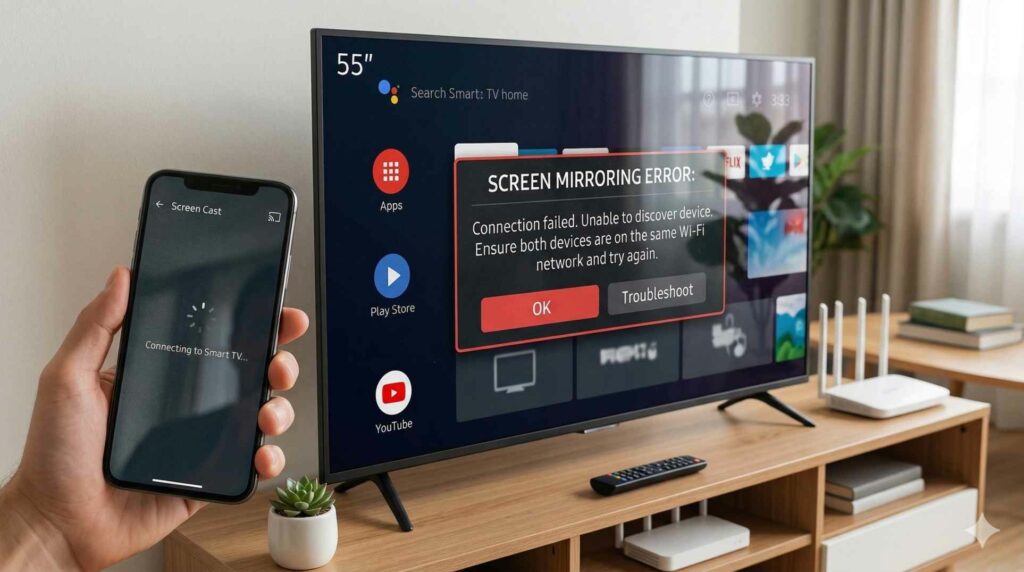
- If the TV appears in the list but gives a black screen, repeated disconnection, or no display, the issue may be TV software, app-level restriction, or a TV hardware fault rather than a simple phone setting.
Why Screen Mirroring Stops Working
Screen mirroring usually stops working because the phone and TV are not talking in the same way. AirPlay needs an AirPlay-compatible TV on the same Wi-Fi, while Google Cast needs the TV and the device on the same network and works through a Chromecast-enabled app or Chrome browser.
Another common reason is that users mix up casting and mirroring. For example, a Samsung phone may show Smart View, a Pixel may show Cast, an iPhone uses Screen Mirroring with AirPlay, and some older Android or Windows setups still depend on Miracast support rather than Google Cast.
In real service cases, we also see simple issues like the TV being connected to the guest Wi-Fi while the phone is on the main Wi-Fi, the cast feature being disabled inside TV settings, or the TV software freezing after an update. That is why the right approach is to separate phone-side checks from TV-side checks instead of trying random fixes.
Check the Phone First
Most screen mirroring failures start on the phone side, so begin there. If the phone is not on the same Wi-Fi as the TV, AirPlay and Google Cast will usually fail immediately.
- Confirm Wi-Fi is actually connected, not just saved.
- Make sure the phone and TV are on the exact same network name.
- If your router has separate 2.4 GHz and 5 GHz bands, connect the phone to the same band the TV is using.
On Android, open the feature your brand uses, such as Cast, Screen Cast, Smart View, or Wireless Display. On iPhone, open Control Centre and tap Screen Mirroring, then select the TV if it appears. If your phone never shows the TV, turn Wi-Fi off and on once, then restart the phone before testing again.
If your phone asks for a local network, nearby device, or connection permission, allow it. In many cases, users tap “Don’t Allow” once and later wonder why the TV never appears in the device list. That is a small settings issue, but it behaves like a major smart TV screen mirroring problem.
For phones using Miracast-style wireless display, compatibility matters. Microsoft notes that wireless display use depends on Miracast support and Wi-Fi capability, and if the display does not support Miracast, the connection will not work without a compatible adapter. So if you are facing a Miracast not working issue, do not assume every smart TV supports it just because it is a smart TV.
Also check software. If your phone has a pending OS update, install it, because outdated wireless protocols and app-level bugs can affect discovery, pairing, or stability. On iPhone, Apple also places AirPlay behaviour inside AirPlay & Continuity settings, including whether connections are automatic or manual.
Check the TV Settings
If the phone looks fine, move to the TV. In many cases, the TV is connected to Wi-Fi, but the actual cast feature is turned off, hidden, or stuck in a disabled system state.
First, confirm the TV is on the same Wi-Fi network as the phone. On Google TV, you can check the active Wi-Fi network under Network & Internet, and Google specifically says it must match the network on the device you want to cast from. If your TV is on a guest network or another band, the TV may not show up at all.
Then check whether the correct TV feature is enabled:
- On Google TV or Android TV, make sure the Google Cast app is enabled.
- On compatible Apple-friendly TVs, make sure AirPlay is available and turned on.
- On some TVs, screen mirroring, device visibility, or pairing approval can be hidden inside Connection, Network, Apple AirPlay, or External Device settings.
Input and source settings also matter. Some TVs respond better when you exit a frozen app, return to the home screen, and then start the cast again. If the TV is locked inside a buggy app or background process, the phone may show “connected” while the TV shows nothing.
Restart the TV fully, not just with the remote standby button if possible. Google’s own cast troubleshooting includes restarting the TV after enabling Google Cast. If that does not help, check for a TV software update, because outdated firmware can cause cast not working on TV, pairing issues, or random disconnects.
Router behaviour can also confuse people. If the internet is slow, the router is overloaded, or the phone and TV are moving between multiple mesh points or Wi-Fi bands, mirroring may connect and disconnect repeatedly. Google advises checking the Wi-Fi connection, using the correct network, and even adjusting or rebooting the router when network performance is poor.
One more important point for Sony and similar Google TV users: on some models, the cast function may be unavailable if the TV is set up in Basic TV mode. That is easy to miss and can make users think the phone is at fault when the TV is actually blocking the feature.
Android Phone vs iPhone Fixes
For Android phones
Android mirroring problems are often caused by method mismatch. Some phones use Google Cast, some use Smart View, and some older devices rely on Miracast or Wireless Display, so the phone not connecting to smart TV may simply be a compatibility issue rather than a hardware failure.
If you use a Samsung phone, open Smart View and test again after confirming the TV is on the same Wi-Fi. If you use a Google TV or Android TV, remember that Google says casting works with a Chromecast-enabled app or Chrome browser, not with every app or every wireless display method.
If the TV appears but fails to connect, try these Android-specific fixes:
- Turn Wi-Fi off and on.
- Restart the phone.
- Remove battery optimisation for the app you are casting from.
- Update the casting app, Google Home if used, and the phone software.
- Test with YouTube first, because it is a simple way to check whether Google Cast is working at all.
If YouTube casts but another app does not, the TV may be fine. In that case, the issue is likely app-specific support, DRM restriction, or a buggy app build rather than a TV fault.
For iPhones
If you have an iPhone screen mirroring not working issue, start with AirPlay basics. Apple says the iPhone or iPad and the AirPlay-compatible TV must be on the same Wi-Fi network, and you should start mirroring from Control Centre by tapping Screen Mirroring.
If the TV asks for a passcode, enter it exactly. Apple also notes that some video apps do not support AirPlay, so a single app failure does not always mean the TV or iPhone is faulty.
For iPhone users, these are the most practical checks:
- Confirm the TV actually supports AirPlay.
- Ensure both devices are on the same Wi-Fi.
- Restart the iPhone and TV.
- Turn AirPlay off and back on in the TV settings.
- Update both the iPhone and the TV software.
A very common pattern is this: photos or screen mirroring works, but one streaming app fails. That usually points to the app, content restriction, or a temporary software issue, not to a dead TV board.
When the Problem Is the TV, Not the Phone
Sometimes the phone is innocent. If multiple phones fail on the same TV, the same TV vanishes from the cast list again and again, or the TV connects but gives a blank screen across different apps, the fault may be inside the TV itself.
Here are the signs that the TV needs closer diagnosis:
- The TV drops Wi-Fi often or cannot hold a stable network connection.
- Cast and AirPlay options keep disappearing after restart.
- The TV detects devices but never completes pairing.
- Screen cast connected but no display appears even after testing with different phones.
- Audio works but video does not, even on supported apps.
- The TV becomes slow, freezes, or reboots during mirroring.
In workshop terms, this can point to a weak Wi-Fi module, corrupted firmware, app-layer conflict, or a motherboard issue affecting wireless communication and video processing. Outdated firmware can also create compatibility problems with newer phones, while hardware faults need technician inspection because no settings change will permanently cure them.
At Ravi Electronics, we often see users waste hours changing phone settings when the real issue is inside the TV main board, Wi-Fi section, or software environment. That is why proper diagnosis matters, especially when the same failure repeats with different phones.
Quick Fixes in Order
Follow these steps in order before you call a technician:
- Check that the phone and TV are on the exact same Wi-Fi network. AirPlay and Google Cast both require that basic match.
- Restart the phone once.
- Restart the TV fully, then open the home screen again. Google includes TV restart in its cast troubleshooting flow.
- Reopen the correct feature on the phone: Smart View, Cast, Screen Cast, or Screen Mirroring.
- On the TV, confirm the relevant feature is enabled: Google Cast, AirPlay, screen mirroring, or device visibility.
- If the router uses separate 2.4 GHz and 5 GHz names, connect both devices to the same active band.
- Update the TV software and the phone OS. Google specifically recommends updating Google TV when casting fails.
- Test with a simple app like YouTube or Photos.
- Try another phone on the same TV, or try the same phone on another TV.
- If two or more phones fail on one TV, stop blaming the phone and get the TV checked.
This sequence saves time because it separates a minor settings issue from a deeper TV fault very quickly.
Common Situations and What They Mean
Phone detects TV but will not connect: this usually means network mismatch, disabled cast feature, pairing problem, or temporary TV software freeze. Google says to check that casting is turned on and that both devices are on the same Wi-Fi.
Connected but black screen: this often points to a TV app conflict, unsupported app behaviour, content restriction, or video-processing problem inside the TV. Apple also notes that some apps may not support AirPlay.
Audio works but video does not: this can happen with app-level DRM restrictions, buggy firmware, or a deeper video-handling issue in the TV. If it happens across multiple apps and multiple phones, the TV needs inspection.
TV does not appear in cast list: first suspect same-network failure, disabled Google Cast, disabled AirPlay, or TV setup mode issues. On some Google TV setups, casting can be unavailable when the TV is configured in Basic TV mode.
Mirroring disconnects repeatedly: weak router coverage, unstable TV Wi-Fi, overloaded network, or power-saving behaviour on the phone are common causes. Google’s support also points users to Wi-Fi checks, correct band selection, and router adjustment or reboot.
Only some apps cast, others do not: the TV may be fine. Google says casting relies on a Chromecast-enabled app or Chrome browser, and Apple says some video apps may not support AirPlay.
Android vs iPhone vs Smart TV Compatibility Table
When to Call a Professional
Call a professional when you have already tested the same TV with different phones, updated software, restarted the router and TV, and the problem still stays exactly the same. That is the point where DIY steps stop being useful and diagnosis becomes more important than guesswork.
You should also book an inspection if the TV keeps losing Wi-Fi, shows black screen after connection, freezes during mirroring, or fails across both Android and iPhone. Those symptoms often point to TV-side software corruption, Wi-Fi hardware trouble, or motherboard-level faults.
Ravi Electronics has been handling TV faults in Agra for 38+ years, so if your smart TV screen mirroring problem is no longer just a settings issue, a proper expert check can save both time and unnecessary part replacement. For local users in Agra, it is sensible to get the TV tested before the issue worsens.
FAQs
Why is my phone not detecting my smart TV?
Most of the time, your phone and TV are not on the same Wi-Fi network, or the TV’s cast or AirPlay feature is disabled. AirPlay and Google Cast both depend on correct network matching, and Google Cast may also fail if the system app is disabled on the TV.
Why does screen mirroring connect but show a black screen?
A black screen usually means the connection started, but video is not being displayed properly because of a TV software glitch, app conflict, unsupported content, or internal TV fault. If it happens in multiple apps and with different phones, the TV needs inspection.
Does screen mirroring require Wi-Fi?
For AirPlay and Google Cast, yes, the phone and TV normally need to be on the same Wi-Fi network. Some Miracast setups can negotiate through Wi-Fi Direct-related methods, but compatibility still depends on supported hardware and wireless display capability.
Why does AirPlay work sometimes and fail other times?
AirPlay can become unreliable if the Wi-Fi connection is unstable, the TV software is outdated, or the app itself does not support AirPlay properly. Apple also states that some video apps may not support AirPlay.
Why is my Android phone not casting to my TV?
Your Android phone may be using a method the TV does not support, such as trying Miracast on a TV that mainly expects Google Cast, or the TV and phone may be on different Wi-Fi networks. Google also notes that casting works through Chromecast-enabled apps or Chrome browser support.
Can a TV hardware problem stop screen mirroring?
Yes. A faulty Wi-Fi module, unstable motherboard, or deeper software corruption inside the TV can stop mirroring, block device discovery, or cause repeated disconnections. If different phones fail on the same TV, the TV should be checked by a technician.
Why does my TV appear in the list but not connect?
This usually means the TV is visible but not ready to complete the connection because of disabled cast settings, stale software, network mismatch, or a frozen background process. On Google TV, checking that Google Cast is enabled and restarting the TV is part of the official fix.
Why do some apps cast but others do not?
Because app support is different. Google Cast needs a Chromecast-enabled app or Chrome browser, and Apple says some video apps may not support AirPlay.
Final Wrap-Up
When screen mirroring is not working on smart TV, start with the basics: same Wi-Fi, correct cast method, enabled TV settings, restart, and software update. If your TV still does not mirror properly after these steps, Ravi Electronics in Agra can help with expert diagnosis, inspection, and TV repair support—whether the issue is software, connectivity, or hardware. For quick help, call or WhatsApp Ravi Electronics and get the problem checked properly before it turns into a bigger fault.