You’re not alone—when YouTube stops on a Smart TV, it usually looks “big problem”, but 80% cases are simple: internet glitch, app cache issue, or TV update pending. This guide is written for Agra families and non-technical users—safe, step-by-step, no risky settings.
Promise: try the quick 2-minute checklist first, then follow the exact “do this in order” steps—most TVs get fixed within 10 minutes. If still not fixed, Ravi Electronics (Agra) can help with a quick home-visit diagnosis and proper setup.
Key Points: Fix in 2 minutes
10-step quick checklist
- Restart YouTube app (press Back/Home, open again).
- Restart TV (proper restart, not just standby).
- Unplug TV power for 30 seconds → plug back.
- Restart Wi‑Fi router (power off 30 seconds).
- Check phone hotspot once (to confirm router issue).
- Check TV date/time = Auto (important for login).
- Clear YouTube cache (safe).
- Update YouTube app (if update available).
- Update TV software (system update).
- Sign out → sign in again (only if login issue).
If this happens → do this
- YouTube not opening / black screen → Power cycle TV + clear cache.
- Buffering every 10–20 seconds → Router restart + move TV closer + reduce devices.
- “No internet” inside YouTube but Wi‑Fi connected → Test YouTube on hotspot + reboot router.
- Login not working / code not showing → Set Date/Time to Auto + sign-in with code method.
- App keeps crashing → Update TV software + reinstall YouTube.
Troubleshooting Steps
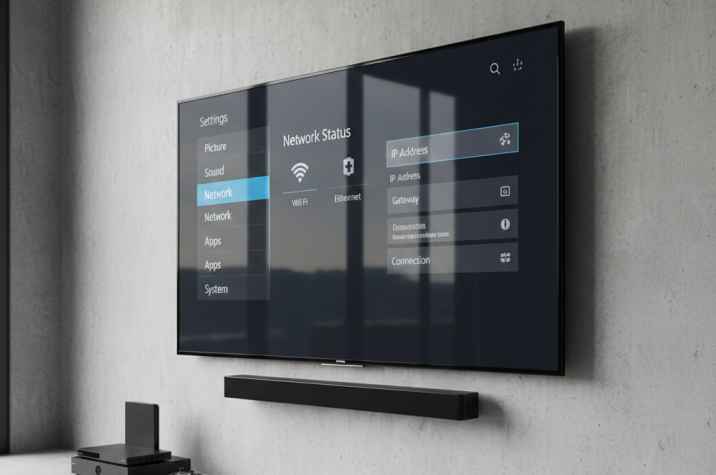
If YouTube doesn’t open → restart TV fully.
If still same → unplug TV 30 seconds → plug back.
If YouTube opens but buffering → restart router 30 seconds.
If buffering continues → test YouTube on phone hotspot.
If hotspot works → router/Wi‑Fi issue (fix Wi‑Fi steps).
If hotspot also fails → TV/app issue (cache/update steps).
If login fails → set Date/Time to Auto → retry sign-in.
If “No internet” in YouTube only → forget Wi‑Fi → reconnect.
If app crashes → update TV software → update app.
If still crashes → reinstall YouTube.
If storage almost full → delete unused apps → retry.
If nothing works → factory reset only as last option.
If TV is heating/hanging frequently → stop DIY and call technician.
Choose your symptom
| What you see | Most likely reason | Do this first (fast) | If still not fixed |
|---|---|---|---|
| YouTube not opening / stuck on logo | App stuck, cache corruption | Power cycle TV (unplug 30 sec) | Clear cache → update app |
| Black screen but sound / or blank home | HDMI/TV glitch or app crash | Restart TV properly | Reinstall YouTube |
| “No internet” inside YouTube, Wi‑Fi connected | DNS/router issue, unstable net | Test on hotspot once | Forget Wi‑Fi → reconnect → router settings |
| Buffering every few seconds | Weak Wi‑Fi, congestion | Restart router + reduce devices | Switch to 5 GHz / LAN cable |
| Login failing / “Sign in” loop | Date/time mismatch, account sync | Set Date/Time = Auto | Sign out → sign in with code |
| YouTube keeps crashing | Old app/TV software, low storage | Update TV software | Reinstall app + free storage |
| YouTube slow only at night | ISP peak-time / Wi‑Fi crowd | Lower quality to 720p | Try DNS (optional) / LAN |
| Remote OK but YouTube not responding | App hung | Force close / restart TV | Clear cache / reinstall |
Brand-wise steps
Menus differ by model/year; wording may vary.
Android TV / Google TV (YouTube cache reset): Settings → Apps → See all apps → YouTube → Clear cache (and if needed, Clear data).
Samsung Tizen (apps not working / reinstall flow): Try TV software update first, then Apps → Settings → select the app → Delete (or Reinstall if Delete is greyed) → Search → install again.
LG webOS (delete & reinstall): Home → long‑press YouTube app (or Edit App List) → Delete/Remove → open LG Content Store → reinstall YouTube.
What exactly is happening? (30-second diagnosis)
If YouTube not working on Smart TV means “not opening / buffering / login failing”, it’s usually one of these: internet instability, TV memory/cache overload, outdated app/software, or account/time mismatch. “Not opening” is mostly app crash/cache; “buffering” is mostly Wi‑Fi/route problem; “login issue” is mostly date/time or account sync.
A quick check: if YouTube works on mobile using same Wi‑Fi but TV fails, then TV/app side is the culprit; if mobile also struggles, internet/router is the main issue.
Fix YouTube not opening on Smart TV
Follow these steps exactly—don’t jump randomly. Most people fix it by Step 3 or Step 4.
- Do a proper TV restart (not just standby)
Turn TV OFF, wait 10 seconds, turn ON. If the TV has “Restart” option in settings, use that. - Power cycle (best first real fix)
Unplug TV from wall socket for 30 seconds, then plug back and open YouTube. (This clears temporary glitches.) - Soft reset (Samsung-style quick method, if applicable)
Press and hold the Power button on the Samsung remote until TV turns off and back on (around 5 seconds), or unplug for 30 seconds and plug back. - Check internet quickly (no confusion method)
- Open any other app (Netflix/Prime) or open browser (if available).
- If everything is slow, fix Wi‑Fi first (router section below).
- Quick test: connect TV to phone hotspot for 2 minutes—only for testing.
- Clear YouTube cache (safe, doesn’t delete your account most of the time)
On Android TV/Google TV, go to Settings → Apps → See all apps → YouTube → Clear cache. - If still stuck, clear data (it will log you out)
On Android TV/Google TV, YouTube → Clear data / Clear all data.
Then reopen YouTube and sign in again. - Update the YouTube app
- Open TV’s app store (Play Store / Samsung Apps / LG Content Store).
- Update YouTube if update is showing.
- Update TV software (system update)
For Samsung, a common path is Home → Settings → Support → Software Update → Update Now (newer models may show “All Settings” in between).
After update, restart TV and test YouTube again. - Reinstall YouTube (clean reinstall)
- Android TV: uninstall updates or uninstall (if allowed) → install again.
- Samsung: Apps → Settings → choose YouTube → Delete (or Reinstall if Delete is greyed) → Search → install.
- LG: delete app → reinstall from LG Content Store.
- Free up storage (common hidden reason)
- Delete 2–3 unused apps.
- Clear cache of other heavy apps (browser, OTT apps).
- Restart TV and try again.
- Network reset (safe if you know Wi‑Fi password)
- Forget Wi‑Fi network → reconnect.
- If LAN cable available, test on LAN once.
- Factory reset (last option only)
Do this only if TV is otherwise working but apps are continuously failing. Note down Wi‑Fi password and all app logins first.
Fix YouTube buffering on Smart TV
Buffering is usually Wi‑Fi quality, not your data plan. Try these practical home fixes:
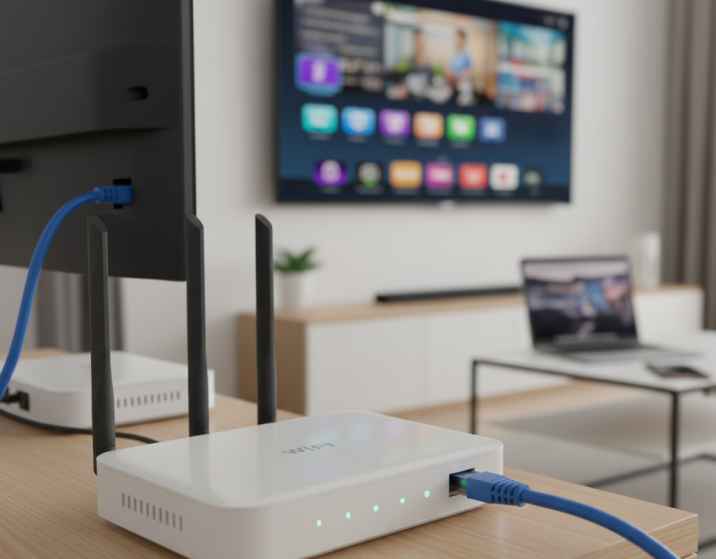
- Restart router + place it right: Keep router in open space, not inside a cabinet; avoid behind TV/metal racks.
- Reduce load for 10 minutes: Pause downloads, limit 4K streaming on other devices.
- Switch band smartly: If router has 2.4 GHz + 5 GHz, use 5 GHz when TV is near the router (faster), and 2.4 GHz when far (more range).
- Try Ethernet (best fix): If possible, use a LAN cable from router to TV—buffering drops dramatically in many homes.
- Lower quality temporarily: In YouTube video settings, try 720p instead of Auto/1080p/4K during peak hours.
- Optional DNS (only if comfortable): If YouTube loads slowly or says “no internet” frequently, changing DNS to a reliable public DNS can help on some networks. If this feels confusing, skip and call a technician.
Fix YouTube login problem on Smart TV
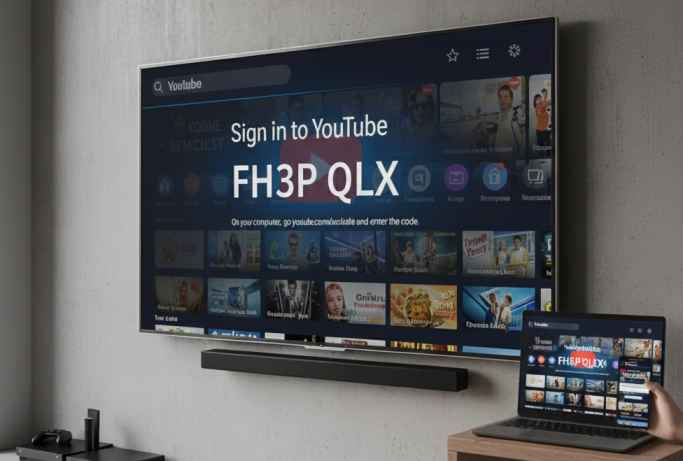
Login issues look scary but are often a simple time/account sync problem.
- Set Date & Time to Auto
- Go to TV Settings → Date/Time → set Automatic (use network-provided time).
Wrong time causes sign-in token errors.
- Use code-based sign-in (easiest)
- On TV: choose Sign in → “Use your phone/laptop” / “Enter code” (wording varies).
- On phone: open the shown link, enter code, confirm.
- Sign out → Sign in again
If YouTube opens but account won’t load, sign out from TV YouTube app and sign in again. - Android TV note: remove & re-add Google account (only if needed)
If Play Store/YouTube both behave weird, removing the Google account and adding again can refresh sync—do it only if you remember the password.
Why YouTube shows “No internet” but Wi‑Fi is connected?
Wi‑Fi connected only means TV is connected to the router—not that the router has stable internet or clean DNS route.
Safe fixes that usually work:
- Restart router (power off 30 seconds).
- Test YouTube on hotspot once: if hotspot works, ISP/router is the issue.
- Forget Wi‑Fi on TV → reconnect (re-enter password).
- Move router closer or remove obstacles (thick walls in many Agra homes can weaken Wi‑Fi).
- If multiple apps show “no internet”, contact ISP because the line may be unstable.
When to stop DIY and call a technician
Stop home troubleshooting and call for help if:
- TV keeps restarting, hanging, or heating unusually.
- Screen goes black randomly (even outside YouTube).
- Wi‑Fi disconnects on TV again and again (other devices are fine).
- Storage shows strange errors or TV is extremely slow in menus.
- After factory reset, the TV still can’t install/update apps.
Safety note: don’t open the TV back panel, don’t spray cleaners inside, and don’t plug/unplug HDMI with wet hands. A Smart TV has delicate boards—wrong DIY can convert a small software issue into a hardware repair.
How Ravi Electronics solves it in Agra
Here’s the practical process followed in most Agra home calls:
- WhatsApp/call first: share TV brand/model + a 10‑second video of the issue + your Wi‑Fi router brand.
- Quick checks on call: basic steps like power cycle, hotspot test, date/time check.
- Home visit (if needed): technician checks Wi‑Fi strength near TV, router placement, DNS/basic network settings, storage, app updates, and overall TV health.
- Workshop only when required: if TV is hanging due to internal memory/board issue, or if system update is failing repeatedly.
- Estimate → approval → fix: clear estimate is shared; work starts only after approval.
Estimated time & cost range in Agra (transparent)
No fixed price—because the “same YouTube problem” can be router-only, software-only, or sometimes a TV performance issue.
Typical ranges (ballpark):
- Basic visit + diagnosis: often 15–30 minutes at home; cost usually in the “small service charge” range.
- Wi‑Fi/router optimization + TV setup (placement, band selection, reconnect, settings): usually 30–60 minutes.
- Software cleanup (cache/data cleanup, app reinstall, storage management): usually 20–45 minutes.
- Deeper cases (TV very slow, update failing, memory/board symptoms): may need workshop visit and more time.
For exact cost, sharing TV model + your area in Agra on WhatsApp helps to give a realistic estimate before visit.
Prevent YouTube issues in future (Agra home tips)
Small habits = fewer breakdowns:
- Restart TV once every 3–4 days (proper restart, not only standby).
- Restart router once a week (30 seconds power off).
- Keep YouTube + TV software updated (auto-update ON if available).
- Maintain free storage: keep at least 1–2 GB free if possible.
- Delete unused apps and clear cache monthly.
- Use a good spike guard (voltage fluctuation in some areas can cause glitches).
- Keep TV ventilation clear; don’t block side/back air vents.
- Avoid running too many heavy apps back-to-back (YouTube + browser + games).
- Prefer 5 GHz Wi‑Fi when TV is near router; otherwise consider LAN cable.
- If router is old (very old single-band), upgrading router often improves buffering more than changing any TV setting.
FAQ
1) Why is YouTube not working on Smart TV today?
Most commonly, the TV app is stuck (cache), or internet is unstable even though Wi‑Fi shows connected.
2) How do I fix YouTube not opening on Smart TV fast?
Unplug TV power for 30 seconds, then clear YouTube cache, then update the app.
3) Will clearing cache delete my YouTube account?
Clearing cache is usually safe; clearing data can log you out and you may need to sign in again.
4) Why does YouTube work on mobile but not on TV?
TV may have outdated app/software, low storage, or weaker Wi‑Fi reception compared to your phone.
5) Why does YouTube keep buffering even on a good plan?
Buffering is often Wi‑Fi congestion, router placement, or peak-time network load—not your plan.
6) What internet speed is enough for YouTube on TV?
As a practical home rule: 720p runs on modest speeds, 1080p needs stable speed, and 4K needs high and consistent speed—stability matters more than “top speed”.
7) How to fix “No internet” in YouTube but Wi‑Fi connected?
Restart router, test hotspot once, forget/reconnect Wi‑Fi on TV, and check DNS only if comfortable.
8) Why is YouTube stuck on loading screen?
App cache corruption or TV memory overload is common—power cycle + clear cache usually fixes it.
9) How do I update YouTube on Smart TV?
Open your TV app store, search YouTube, and update if the option appears.
10) YouTube login code not working—what to do?
Set TV date/time to Automatic, then retry code login. If needed, sign out and sign in again.
11) Is factory reset safe for fixing YouTube?
It’s safe but time-consuming—use only after trying cache clear, updates, reinstall, and network reset.
12) When should I call a technician for YouTube issue?
If TV is hanging, overheating, restarting, or apps keep failing even after updates and reinstall.
13) “Bhaiya YouTube TV pe chal hi nahi raha, sab kuch try kar liya—ab?”
Pehle hotspot test karo (router issue confirm hota hai), phir cache clear + update. Agar TV slow/hang ho raha hai, technician call better.
14) “Wi‑Fi connected dikha raha hai par YouTube bolta ‘No internet’—kyun?”
Wi‑Fi connected matlab router se link hai; internet stable nahi bhi ho sakta. Router restart + forget/reconnect usually kaam karta hai.
What Next
If you tried the steps and YouTube not working on Smart TV is still not fixed, it’s okay—some cases need proper network checking, software cleanup, or TV performance diagnosis. For Agra homes, Ravi Electronics can help via WhatsApp/call—share your TV model and a short video of the problem, and get the quickest possible fix without risky DIY.